How do I use and manage 2FA in Cyber Guardian?
Once 2FA is set up, every time you log in to the platform with your username, you will see this screen:
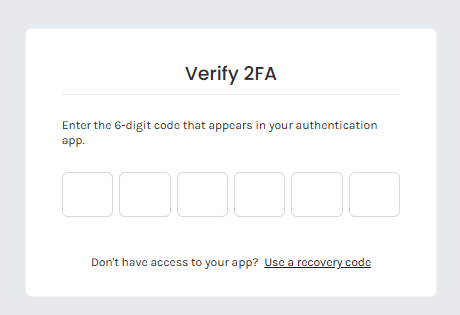
You will need to check the app on your mobile phone at that time to enter the six-digit OTP. If you do not have access to the app at that time, you can click "Use a recovery code".
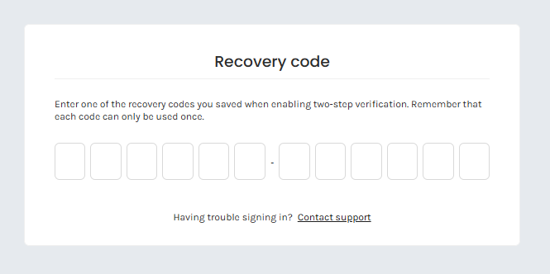
You can then enter one of the recovery codes provided previously. These recovery codes are for single use only, so if you have already used one, you will not be able to use it again.
If you also do not have access to any of these recovery codes, you will need to contact support at support@cyberguardian.tech
If necessary, for example if you have changed your mobile phone or want to change your 2FA app, under Settings > My Account you can reset 2FA for your user account by clicking the Reset button.
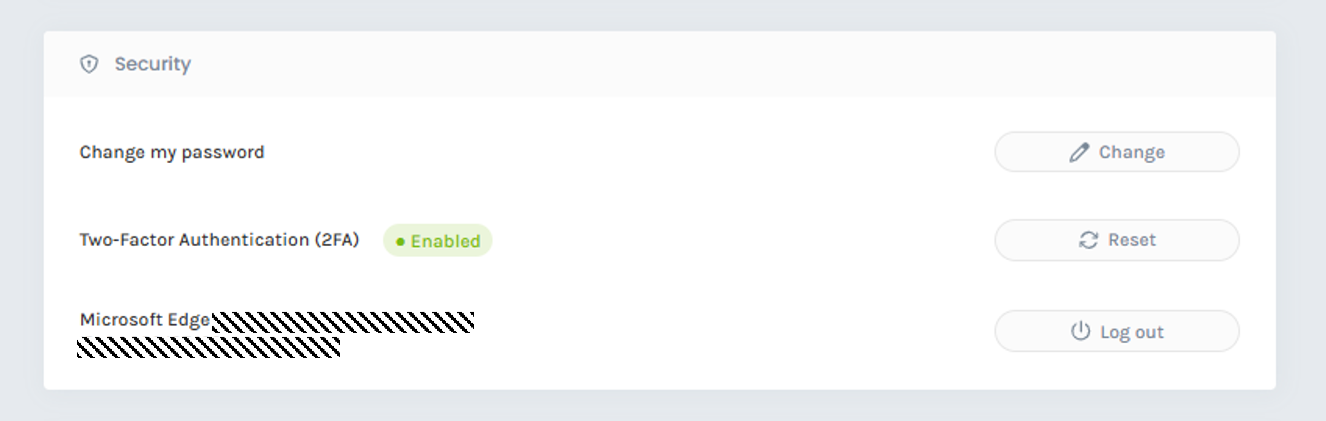
This will allow you to configure 2FA for your account again. To do this, Cyber Guardian will ask you one final time for the 2FA code from your current app. Once you have entered it, you will automatically be logged out. When you log in again, you can repeat the steps described above. We recommend deleting the previous connection from your app before step 4 to avoid confusing it with the new connection.
Important: If you decide to disable the 2FA Policy, please note that it will be disabled for all users who authenticate to Cyber Guardian using a username and password. Cyber Guardian will therefore not ask them for 2FA the next time they log in. To disable it, go to Settings > My Company and click Disable. .