Prerequisites for activation of email protection – Google Workspace
Google Workspace has a peculiarity with regard to the routing of emails, all internal email traffic sends it abroad and enters Google again as if they were external emails. This feature not present in other mail services has to be reconfigured in Workspace before activating email protection.
To do this, you access the Google Workspace configuration panel (admin center), once inside click on the top left in “Apps -> Google Workspace -> Gmail”, you will see a page like the following:
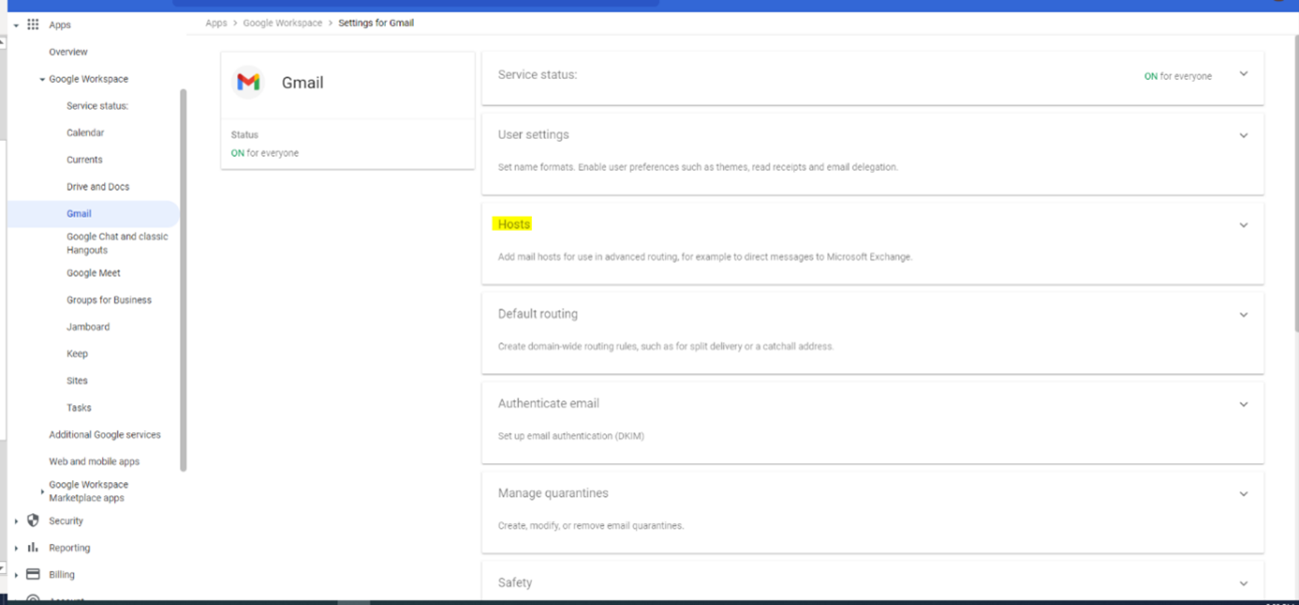
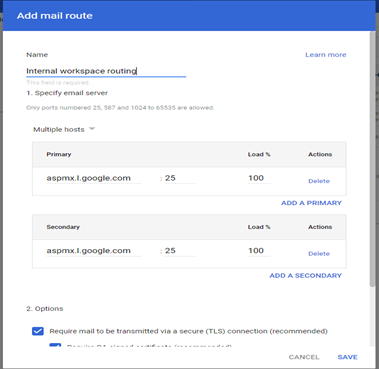
From the options shown, enter “Host”. Click on “Add Route” and a new window will open. Configure the MX of Google:
- Name: insert “Internal Workspace Routing”
- Select “Multiple Host” in the drop-down.
- A field is enabled to add the first Google MX: “aspmx.l.google.com”, port 25 and 100% load.
- Enable the second field to add a secondary MX of Google: “alt1.asmpx.l.google.com”, port 25 and 100% load
More Google secondaries could be added (alt2.asmpx.l.google.com, alt3.asmpx.l.google.com), if you do the load of 100% should be distributed among the secondary ones, that is to say for each secondary that is added divide 100 by the number of secondary MX added:
Ex: If you put 2 secondary, please split the load at 50% for each of them, if you put 3 secondary, please split the load at 34% to the first and 33% for the remaining 2.
Leave as default the indicated TLS configuration, and it should be something like this:
Save and return to the previous window, (“Apps -> Google Workspace -> Gmail”). Back in this window, go down to the end and access “Routing”:
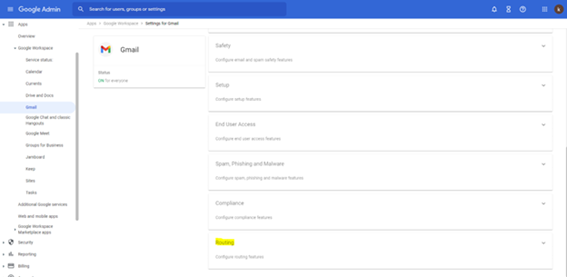
Once inside, click on “Add another rule” (if there is no existing route, it will say “configure” instead of “Add another rule”). A new window opens. Configure:
- Name: Insert “internal routing”
- Email messages to affect: select “internal sending”
- Route: select the box “change the route” and in the drop-down select the host that you created in the previous stage (internal workspace routing).
- Go down to the end and display more options “Show options”.
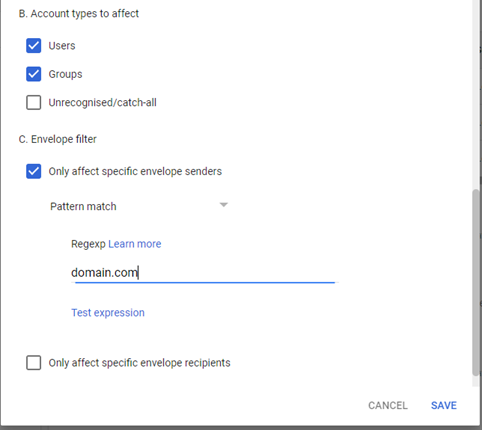
- Keep going down to Account types to affect: select Users and Groups
- Go down to Envelope filter: select “Only affect specific envelope senders”, now choose from the “Pattern Match” drop-down and in the field that appears enter our mail domain (eg: pepito.com).
It should look like the following image:
Save it. Changes are applied in a few minutes.
Now proceed to allow the IPs of the mail protection datacenter. Go back to the previous window (“Apps -> Google Workspace -> Gmail”) and enter “Spam, Phishing and Malware”, identify the icon of a pen near “Email allowlist” and click it.
In the box that appears enter the list of IPS separated by comma:
| Region | IPs |
|---|---|
| Europa | 208.56.4.116, 66.159.243.214 |
| America | TBD |
Save it.
Now go down to the option “Inbound Gateway” and click on the button to configure (it may appear as it is disabled, if so click on enable).
- In the name insert “CG Inbound Gateway”
- Click on the “Add” button to add the following IPS one by one:
| Region | IPs |
|---|---|
| Europe | 208.56.4.116 66.159.243.214 |
| America | TBD |
- Make sure that it activates the option “Require TLS for Connections From the Email Gateways Listed Above”, and disable the other 2 options that come out.
Save it. You have finalized the prerequisites to activate Cyber Guardian email protection.
Please continue here.