Prerequisites for email protection activation – Microsoft O365
Access Microsoft 365 and enter the “Defender Portal” (security). Once inside, expand the “Email & Collaboration” menu in the left sidebar:
- Access “Policies & Rules” -> “Threat Policies” -> “Anti-Spam”.
- Select “Connection Filter Policy” in the policy details to make modifications.
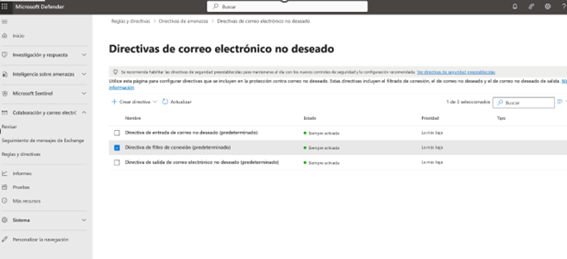
- Click on “Edit connection filter policy” and configure the following:
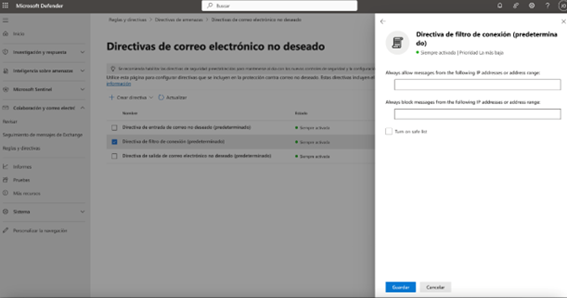
“Always allow messages from the following IP addresses or address range”, adding the list of IPs according to your country:
| Region | IPs |
|---|---|
| Europe | 208.56.4.116 66.159.243.214 |
| America | TBD |
- Click on “Add to Safe List” and then on “Save”.
When creating an input connector, email protection recommends disabling Microsoft Defender Safe Links, as they may conflict with the URL protection of the email protection. See the following link* to do it.
*(This configuration is supported by Microsoft, if any problems arise, contact them for help.)
The email protection delivery path is configured to deliver all incoming messages to a specific hostname, which, in this case, is the MX record of the Microsoft 365 account. To deliver the emails to your Microsoft 365 service, you must determine your host name, to do this follow the following steps:
- Access “Microsoft 365 Admin Center”
- Select one of the following options, the one that appears in your menu:
- “Domains”
- or “Setup | Domains”
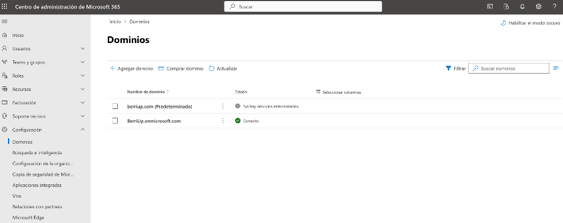
- Click on “Domain Settings tab” for the domain to configure.
- Please note the value of the MX.
- This MX value is sent by email to the Cyber Guardian team for configuration (support@cyberguardian.tech).
You can then continue with activation of email protection here.