Instructions for installing protection on 1 device
In this article we'll explain how to assign your license and install device protection according to the type of device you want to protect (desktop device or server or Android mobile or iOS mobile).
- Select Protection: Assign Protections.
- Select your email and click the Assign Licenses button.
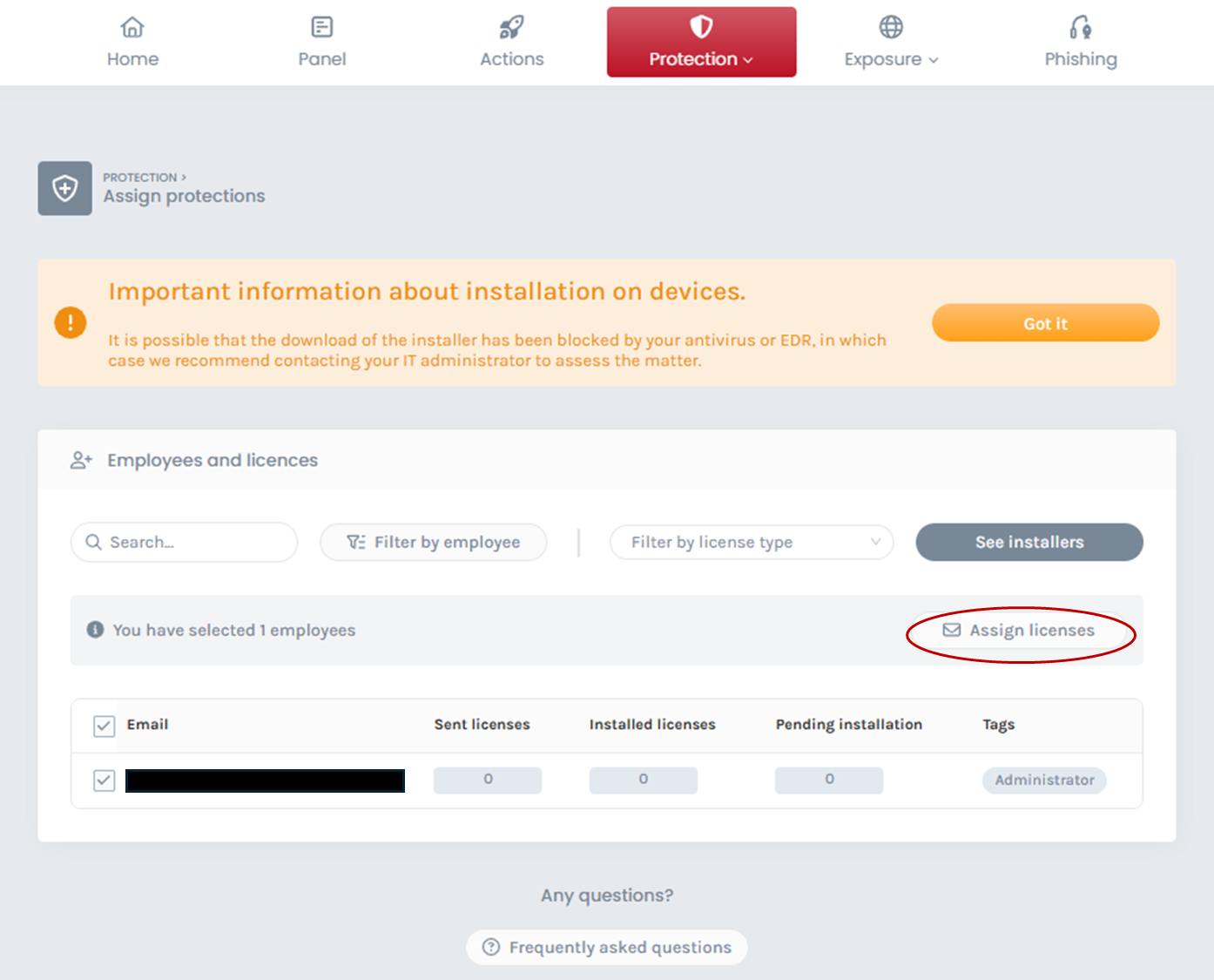
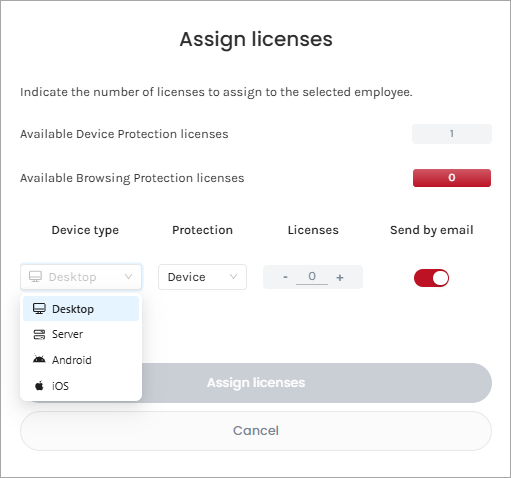
- Select the type of device you want to protect by indicating one of these options:
- Desktop, if you want to protect a personal Windows, Mac or Linux device.
- Server, if you want to protect a Windows or Linux server.
- Android to protect an Android mobile or tablet.
- iOS to protect your iPhone or iPad tablet.
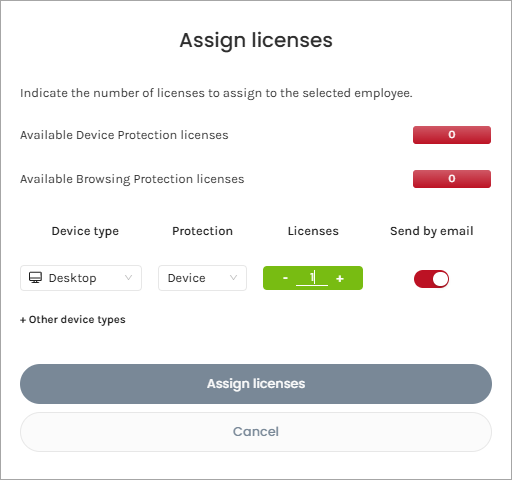
- Insert "1" as the number of Licenses and press the Assign Licenses button.
- You will then receive an email automatically:
- 5a. If you selected a desktop device or server, you will receive an email including a link to download the appropriate installer based on your operating system and a unique installation code for your device.
- 5b. If you selected an Android device type you will receive an email including a link to the Google Play Store to download the corresponding app and a unique QR code for your device.
- 5c. If you selected an iOS device type, you will receive an email including a link to the Apple Store to download the app and an installation code for your device.
6. Install the protection on your device:
-
6a. To install the protection on a desktop or server device, follow the installation process here for Windows, Mac, or Linux.
-
6b. If your device is Android, install the corresponding app from the Google Play Store. Once installed, it requires mobile enrollment (linking your mobile with your user). Use one of these 2 methods depending on whether you are viewing the email on your mobile phone or on another device:
- If you are viewing the email from your mobile phone with the app installed click Enroll now.
- If you are viewing the email on another device, capture the QR code with your mobile device.
For more information you can check here the installation process for Android.
- 6c. If your device is iOS, install the corresponding app from the Apple Store. Once installed, it will request your installation code and the email address where you received it. For more information you can check here the installation process for iOS.
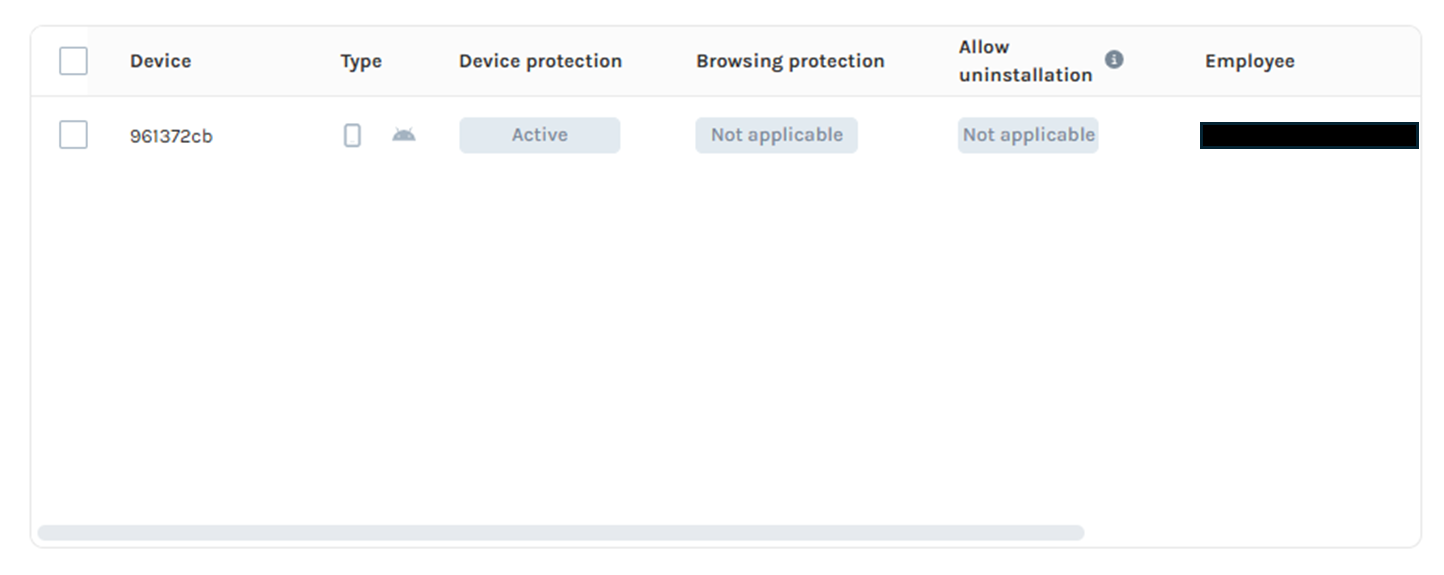
Once the protection is installed on your device, you can view it from Protection > Device Security: in this example you can see how you would visualize your device in case of being an Android mobile device:
If you would like to contract Cyber Guardian protection for more devices or are interested in protecting your navigation or your email, contact us at contact@cyberguardian.tech. If you have any questions give us your phone and we'll call you. You can also check our frequently asked questions.