How do I install Cyber Guardian on Linux?
You can check which versions of Linux are supported here.
You can download the Linux installer according to your architecture from your download area*. There you can also copy the command to execute it.
*To access your download area, press the View Installers button or enter the https://**.cyberguardian.tech/client/device-security/installers route, replacing ** with your regular Cyber Guardian subdomain.
For installer versions after 4.2, depending on the protections to install, the installation command would be:
- X64: chmod +x ./cyberguardian_x64.run;sudo ./cyberguardian_x64.run install [device-protection|web-protection|all] [token]
- ARM64: chmod +x ./cyberguardian_arm64.run;sudo ./cyberguardian_arm64.run install [device-protection|web-protection|all] [token]
For installer versions prior to 4.2 the installation command would be:
- X64: chmod +x ./cyberguardian_x64.run;./cyberguardian_x64.run [token]
- ARM64: chmod +x ./cyberguardian_arm64.run;./cyberguardian_arm64.run [token]
If you do not have a token (installation code), find out how here.
Once the command is copied, you must paste it into the terminal and press Enter.
After having pressed Enter, the installer will do the entire download and installation process, through which you can request the password to continue moving forward.
Finally, in a few minutes the process of downloading, installing and registering will be finished.
Here is an example:
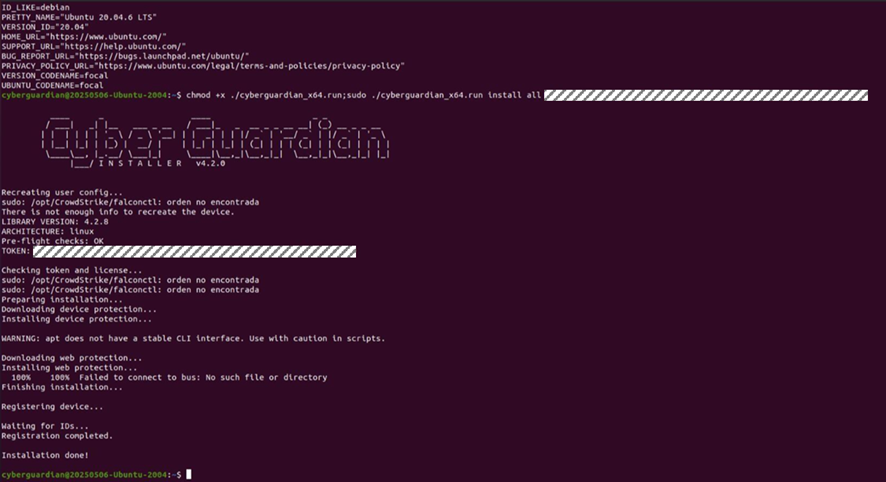
For more information on the installer exit codes by command line click here.